### Java AWT Demo: Basic Graphics and Mouse Interaction Applet ###
110 likes | 223 Views
This demo showcases Java AWT's capabilities through an interactive applet that allows users to scribble with the mouse. The program consists of two primary components: a window application that introduces a graphical user interface and an applet that enables drawing and event listening. Users can experience various graphics primitives such as lines, arcs, rectangles, and polygons, while learning about the Java event model. This example serves as an educational tool for understanding Java AWT and event handling. ###


### Java AWT Demo: Basic Graphics and Mouse Interaction Applet ###
E N D
Presentation Transcript
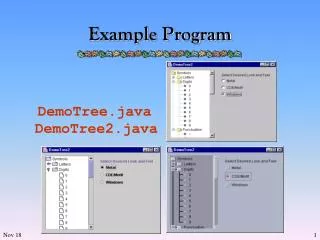
Windows program example import java.awt.*; import java.awt.event.*; public class wpexample extends Frame { public wpexample(String title) { super(title); // set frame title. this.addWindowListener(new WindowAdapter() { public void windowClosing(WindowEvent e) { System.exit(0); } }); this.setFont(new Font("SansSerif", Font.PLAIN, 12)); } public static void main(String[] args) { Frame f = new wpexample("AWT Demo"); f.pack(); f.show(); } }
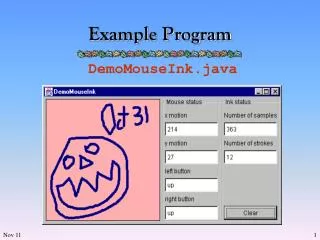
Applet example import java.applet.*; import java.awt.*; /** * This applet lets the user scribble with the mouse. It demonstrates * the Java 1.0 event model. **/ public class Scribble extends Applet { private int last_x = 0, last_y = 0; // Fields to store a point in. // Called when the user clicks. public boolean mouseDown(Event e, int x, int y) { last_x = x; last_y = y; // Remember the location of the click. return true; } // Called when the mouse moves with the button down public boolean mouseDrag(Event e, int x, int y) { Graphics g = getGraphics(); // Get a Graphics to draw with. g.drawLine(last_x, last_y, x, y); // Draw a line from last point to this. last_x = x; last_y = y; // And update the saved location. return true; } }
Graphics import java.applet.*; import java.awt.*; /** * An applet that demonstrates most of the graphics primitives in java.awt.Graphics. **/ public class GraphicsSampler extends Applet { Image image; Image background; // Initialize the applet public void init() { this.setBackground(Color.lightGray); image = this.getImage(this.getDocumentBase(), "tiger.gif"); background = this.getImage(this.getDocumentBase(), "background.gif"); }
Graphics // Draw the applet whenever necessary public void paint(Graphics g) { Color fill = new Color(200, 200, 200); Color outline = Color.blue; Color textcolor = Color.red; Font font = new Font("sansserif", Font.BOLD, 14); g.setFont(font); // get a background image and tile it tile(g, this, background); // Draw a line g.setColor(outline); g.drawLine(25, 10, 150, 80); centerText("drawLine()", null, g, textcolor, 25, 10, 150, 80); // Draw an arc g.setColor(fill); g.fillArc(225, 10, 150, 80, 90, 135); g.setColor(outline); g.drawArc(225, 10, 150, 80, 90, 135); centerText("fillArc()", "drawArc()", g, textcolor, 225, 10, 150, 80);
Graphics // Draw a rectangle g.setColor(fill); g.fillRect(25, 110, 150, 80); g.setColor(outline); g.drawRect(25, 110, 150, 80); centerText("fillRect()", "drawRect()", g, textcolor, 25, 110, 150, 80); // Draw a rounded rectangle g.setColor(fill); g.fillRoundRect(225, 110, 150, 80, 20, 20); g.setColor(outline); g.drawRoundRect(225, 110, 150, 80, 20, 20); centerText("fillRoundRect()", "drawRoundRect()", g, textcolor, 225, 110, 150, 80); // Draw a 3D rectangle (clear an area for it first) g.setColor(fill); g.clearRect(20, 205, 160, 90); g.draw3DRect(25, 210, 150, 80, true); g.draw3DRect(26, 211, 148, 78, true); g.draw3DRect(27, 212, 146, 76, true); centerText("draw3DRect()", "x 3", g, textcolor, 25, 210, 150, 80);
Graphics // Draw an oval g.setColor(fill); g.fillOval(225, 210, 150, 80); g.setColor(outline); g.drawOval(225, 210, 150, 80); centerText("fillOval()", "drawOval()", g, textcolor, 225, 210, 150, 80); // Draw a polygon int numpoints = 9; int[] xpoints = new int[numpoints+1]; int[] ypoints = new int[numpoints+1]; for(int i=0; i < numpoints; i++) { double angle = 2*Math.PI * i / numpoints; xpoints[i] = (int)(100 + 75*Math.cos(angle)); ypoints[i] = (int)(350 - 40*Math.sin(angle)); } g.setColor(fill); g.fillPolygon(xpoints, ypoints, numpoints); g.setColor(outline); xpoints[numpoints] = xpoints[0]; ypoints[numpoints] = ypoints[0]; g.drawPolygon(xpoints, ypoints, numpoints+1); centerText("fillPolygon()", "drawPolygon()", g, textcolor, 25, 310, 150, 80);
Graphics // Center and draw an image int w = image.getWidth(this); int h = image.getHeight(this); g.drawImage(image, 225 + (150-w)/2, 310 + (80-h)/2, this); centerText("drawImage()", null, g, textcolor, 225, 310, 150, 80); } // Utility method to tile an image on the background protected void tile(Graphics g, Component c, Image i) { Rectangle r = c.getBounds(); // use c.bounds() in Java 1.0.x int iw = i.getWidth(c); int ih = i.getHeight(c); if ((iw <= 0) || (ih <= 0)) return; for(int x=0; x < r.width; x += iw) for(int y=0; y < r.height; y += ih) g.drawImage(i, x, y, c); }
Graphics // Utility method to center text in a rectangle protected void centerText(String s1, String s2, Graphics g, Color c, int x, int y, int w, int h) { Font f = g.getFont(); FontMetrics fm = Toolkit.getDefaultToolkit().getFontMetrics(f); int ascent = fm.getAscent(); int height = fm.getHeight(); int width1=0, width2 = 0, x0=0, x1=0, y0=0, y1=0; width1 = fm.stringWidth(s1); if (s2 != null) width2 = fm.stringWidth(s2); x0 = x + (w - width1)/2; x1 = x + (w - width2)/2; if (s2 == null) y0 = y + (h - height)/2 + ascent; else { y0 = y + (h - (int)(height * 2.2))/2 + ascent; y1 = y0 + (int)(height * 1.2); } g.setColor(c); g.drawString(s1, x0, y0); if (s2 != null) g.drawString(s2, x1, y1); } }